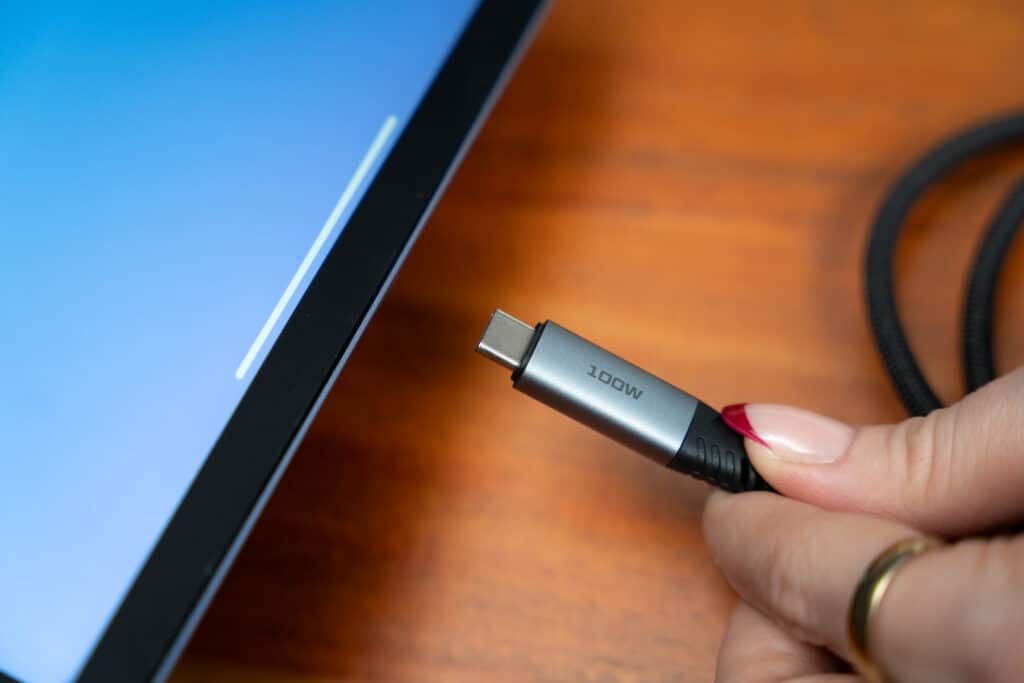
One cable, all the answers – your USB-C guide from Verbatim
If you’ve noticed that more and more of your devices are using the same small, oval-shaped port, you’re not imagining it. USB-C has quietly become the dominant connector standard across laptops, smartphones, tablets, external drives and monitors – and for good reason.
But here’s the thing: just because two cables have the same connector doesn’t mean they do the same job. Understanding what USB-C can (and can’t) do will save you from a lot of frustration and help you get a lot more out of your devices.
So what actually is
USB-C?
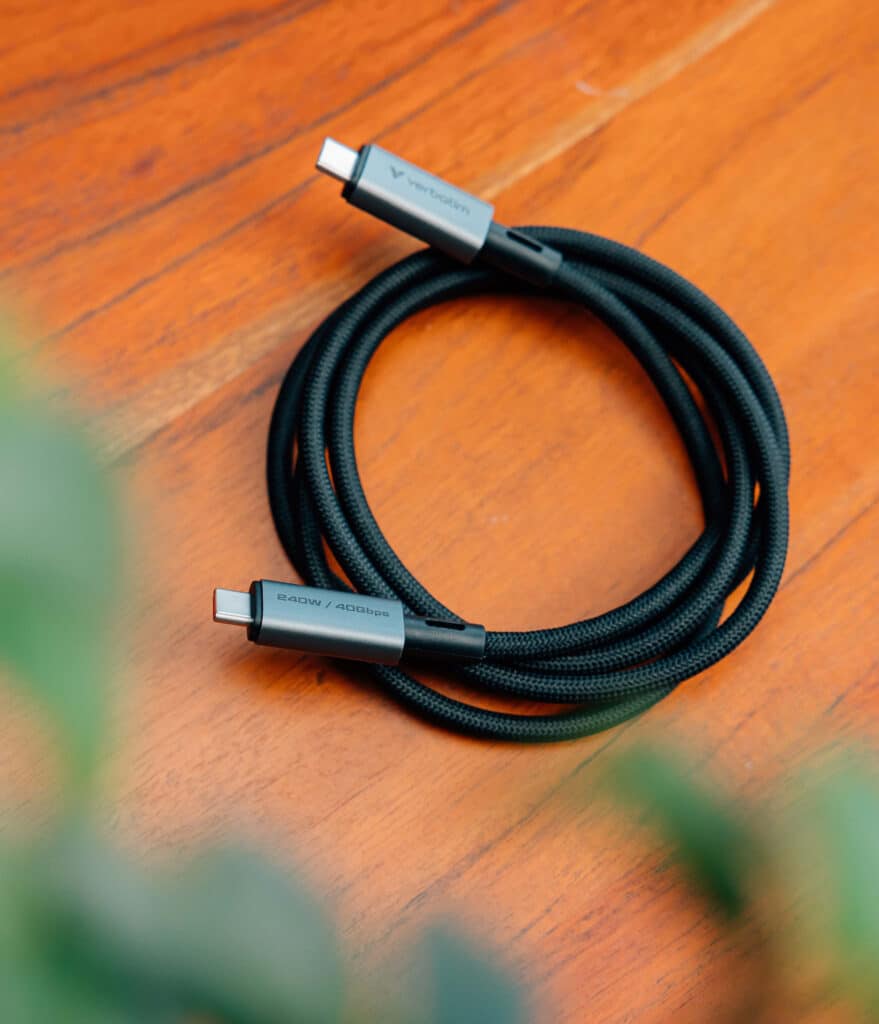
USB-C refers to the physical connector shape – that reversible, oval-shaped plug that works no matter which way you plug it in. It’s a major step up from older USB types, which had separate connectors for different jobs and could only be inserted one way.
What makes USB-C special isn’t just the shape, it’s everything a single USB-C connection can carry:
- Charging power (from phone top-ups to laptop charging)
- Data transfer (from basic syncing to ultra-fast SSD speeds)
- Display output (video and power over one cable)
- Accessory connectivity through hubs and docking stations
The result? Fewer cables, fewer adapters, and a lot less clutter on your desk.
The big benefit: USB Power Delivery (USB-PD)
One of USB-C’s most important features is USB Power Delivery, or USB-PD. Rather than delivering a fixed amount of power, USB-PD allows a device and charger to “negotiate” – the charger provides exactly as much power as the device needs, up to its rated maximum.
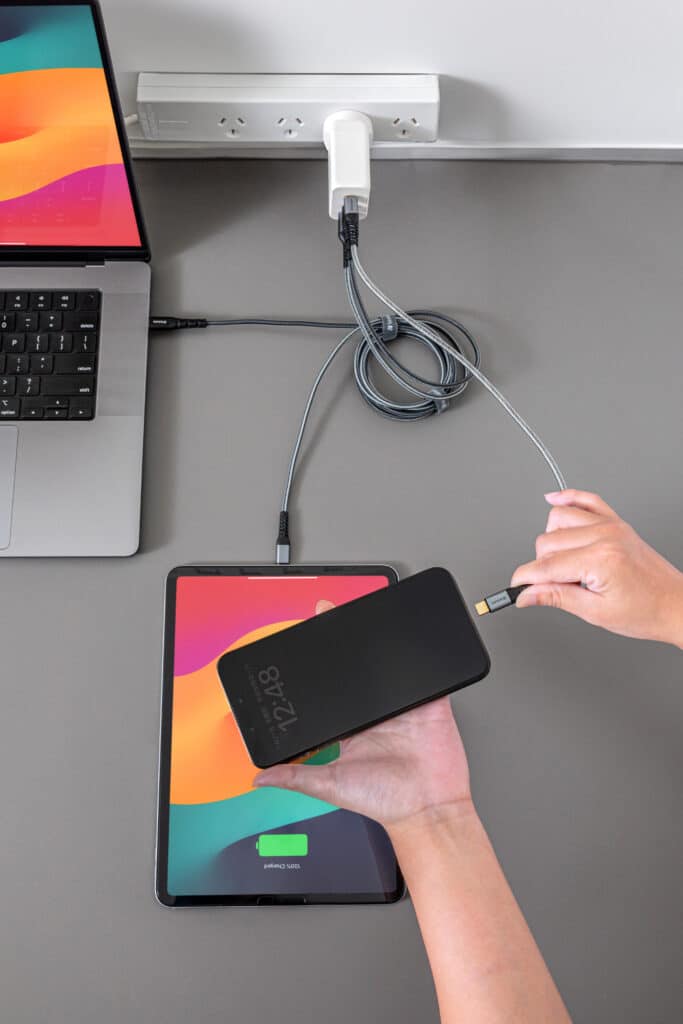
This means a single USB-C charger can fast-charge a phone, top up a tablet, and deliver enough power to charge a laptop, all depending on what you plug in. Verbatim’s GaN Wall Chargers take full advantage of this, offering compact units from 35W up to 140W that handle virtually any device you throw at them.
💡 GaN (Gallium Nitride) technology is what allows modern USB-C chargers to be so compact without sacrificing power. A 100W GaN charger today can be smaller than a basic 45W charger from just a few years ago.
Not all USB-C Cables are created equal
This is the part that trips most people up, and it’s worth understanding before you buy anything.
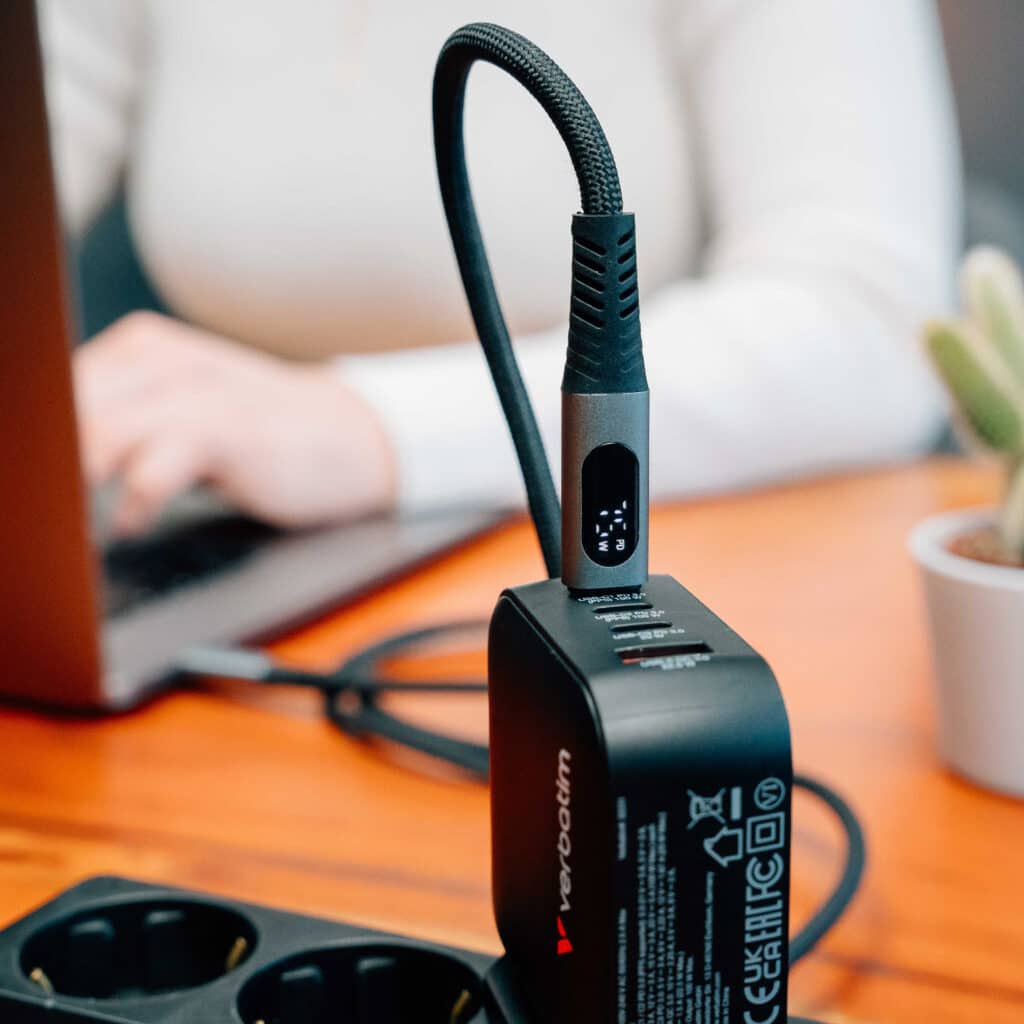
USB-C cables may all look the same from the outside, but their internal construction varies significantly. A cable’s performance depends on what standards it’s been built to support.
Charging wattage: Some USB-C cables are rated for basic charging (up to 60W), while others support up to 240W for high-powered laptops and workstations. If you’re using a high-wattage GaN charger, you’ll need a cable that can actually handle that power.
Data transfer speeds: Cable speeds range enormously, from 480Mbps up to 40Gbps with USB4. If you regularly move large files or work with high-resolution video, cable speed matters just as much as the drive itself.
Cable Comparison Chart
| Part No. | Description | Wattage | Transfer Speed | Best For |
| 31847 | Sync & Charge USB4 Cable with Display | 240W | 40Gbps | High-end gaming laptops, 4K/8K video content |
| 31849 | Sync & Charge USB4 Cable | 240W | 40Gbps | High-end gaming laptops, 4K/8K video content |
| 66820/66821 | Tough Max Cable -120cm/200cm | 240W | 480Mbps | Fast charging of laptops, tablets, phones, etc |
| 31848 | Sync & Charge Cable with Display | 100W | 480Mbps | Everyday charging for laptops, phones & tablets |
| 31863/31854 | Sync & Charge Magnetic Cable – Black / Grey | 100W | 480Mbps | Travelers, hybrid workers, students |
| 66974 | Sync & Charge USB-C to USB-C/Lightning | 60W | 480Mbps | Users with both newer & older devices |
| 32391 | Sync & Charge Essentials Cable 2pk | 60W | 480Mbps | Budget-conscious users |
Display support (DisplayPort Alt Mode)
Some USB-C cables can carry a video signal to a monitor and some cannot. If you want to connect a laptop to a portable monitor using a single USB-C cable, you’ll need one that supports DisplayPort Alt Mode. Always check the cable spec before you buy.
Quick tip: Charging-only USB-C cables can look identical to display-capable ones. Always look for “DisplayPort” or “video output” in the product description if you need to power a monitor.

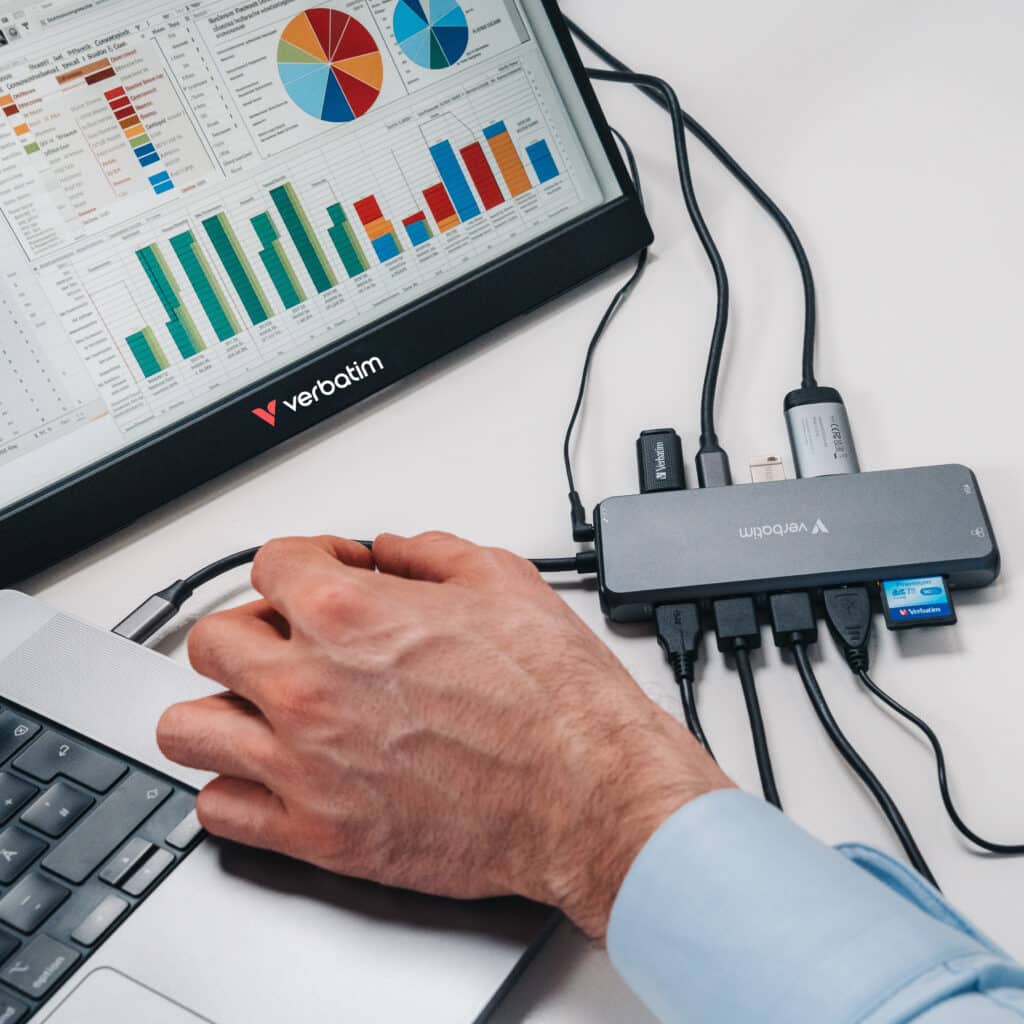
USB-C Hubs: Turning one port into many
Many modern laptops have just one or two USB-C ports, which is elegant in design but limiting in practice. A USB-C hub solves this by expanding a single port into a full range of connections: USB-A ports, HDMI, DisplayPort, Ethernet, SD card slots, and more.
Verbatim’s USB-C Pro Multiport Hubs range from compact 5-port options up to comprehensive 14-port setups, with up to 85W Power Delivery passthrough so your laptop charges at the same time as everything else connects.
External SSDs: Where USB-C really shines
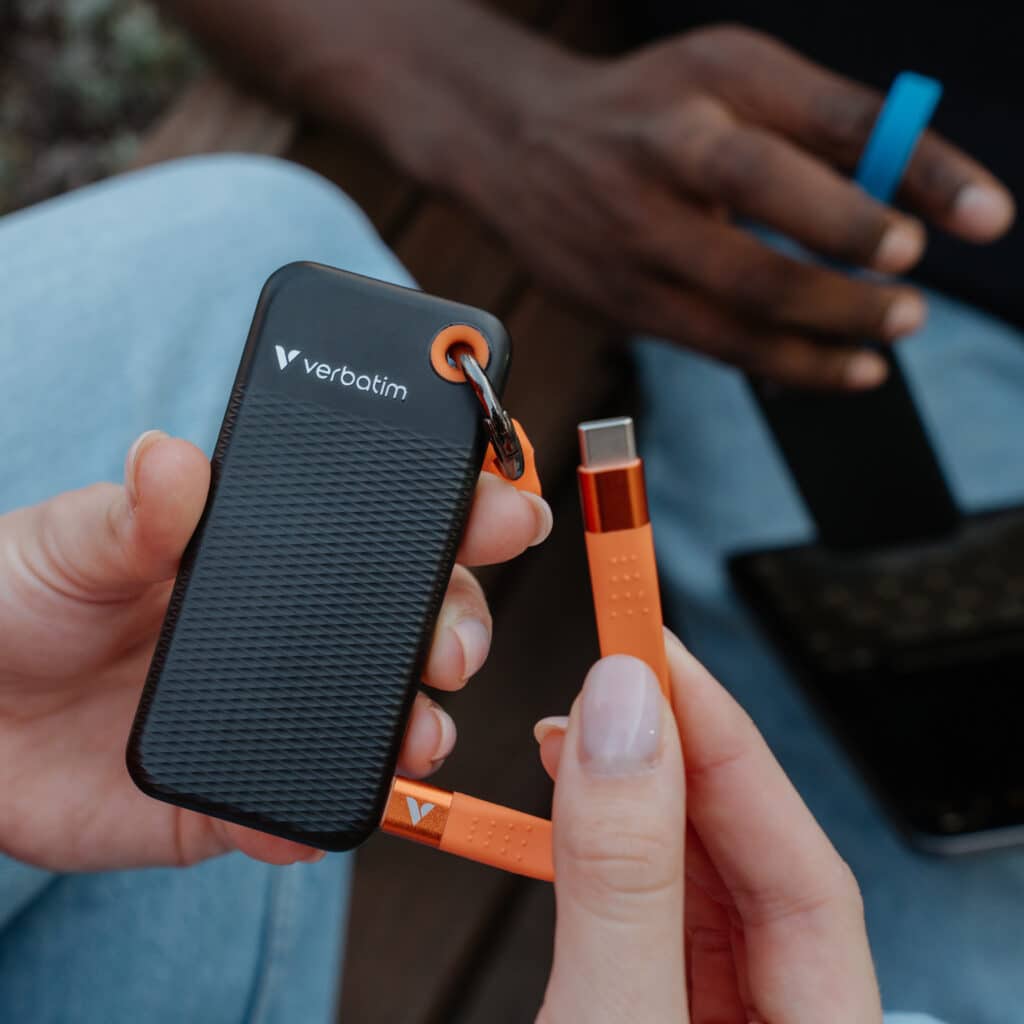
One of the best use cases for high-speed USB-C is external storage. With USB4 cables, an external SSD can deliver read speeds that rival internal drives, making them genuinely useful for working directly from the drive rather than just storing files.
Verbatim’s SSD range covers everything from the pocket-friendly Pocket SSD (1000MB/s) through to the TurboMetal SSD with read speeds up to 3700MB/s – compact enough to carry anywhere, fast enough for professional video editing and large media libraries.

Portable Monitors: One cable really can do everything
Portable USB-C monitors represent one of the most practical applications of USB-C’s multi-role capability. A compatible laptop and a display-capable USB-C cable can give you a second screen with zero fuss – single cable, no power brick needed.
Verbatim’s portable monitor range includes 14″, 15.6″ and 17.3″ options with Full HD 1080p resolution, including touchscreen models for added versatility on the go.
What to look for when buying USB-C Accessories
- Cables: Check wattage, data speed, and whether video output is supported
- Wall Chargers: Match the wattage to your most power-hungry device; GaN is worth it for the size savings
- Hubs: Look at port selection and whether Power Delivery passthrough is included
- SSDs: Match the drive speed to your cable – a fast SSD is slowed down by a slow cable
- Portable Monitors: Confirm your laptop supports DisplayPort Alt Mode over USB-C before assuming it’ll work